
A property photo can look brighter and still become less useful. Push the windows too far and the room feels larger than it is. Remove the wrong object and a maintenance issue disappears with it. The practical value of an AI photo editor is therefore not measured by polish alone. It is measured by whether the edited image remains a fair account of the space while becoming easier to read.
PicEditor AI gives facilities teams a prompt-led route: upload a reference image, describe one change, choose an output size, and generate a revised version. That simple path is worth testing against the difficult photos teams actually receive—dim plant rooms, cluttered service corridors, and wide rooms squeezed into a narrow listing slot.
Before the test, name the photo’s job. A leasing image, a maintenance card, a contractor briefing, and a condition record have different tolerance for visual change. Write the intended use beside the source filename. That one sentence gives the reviewer a practical basis for rejecting an edit that looks attractive but removes information the next reader needs.
Build Three Test Photos Before Any Cleanup
A clean showroom image proves very little. A better trial uses three photos that expose different failure modes. Keep the originals untouched, duplicate them into a test folder, and decide what must remain true before writing a prompt. The room boundary, fixed equipment, safety labels, stains, cracks, and access restrictions are facts, not decoration.
Start with a Clean Control Image
Choose one evenly lit photo with a clear subject and little clutter. Ask for a narrow correction such as softening a harsh color cast while keeping the wall color, floor marks, and equipment unchanged. This control shows how the tool handles an easy instruction. If major surfaces shift or small labels become invented, the workflow is not ready for harder photos.
Add a Low-Light Equipment Room
The second test should contain shadows, reflective metal, pipes, and overlapping equipment. Ask only for clearer lighting and reduced noise. Do not ask the system to “make the room modern” or “improve everything.” Those broad prompts invite structural changes. The pass condition is simple: the same valves, cable routes, warning stickers, and access gaps remain visible in the same places.
Finish with Clutter and Tight Cropping
The third image should include temporary clutter near a permanent feature. This is where object removal becomes risky. Mark in the prompt which item may be removed and which nearby objects must stay. Then test a second output ratio without asking for a new scene. If the crop hides an access panel or emergency route, the image fails even when it looks cleaner.
Three Steps from Upload to Approval
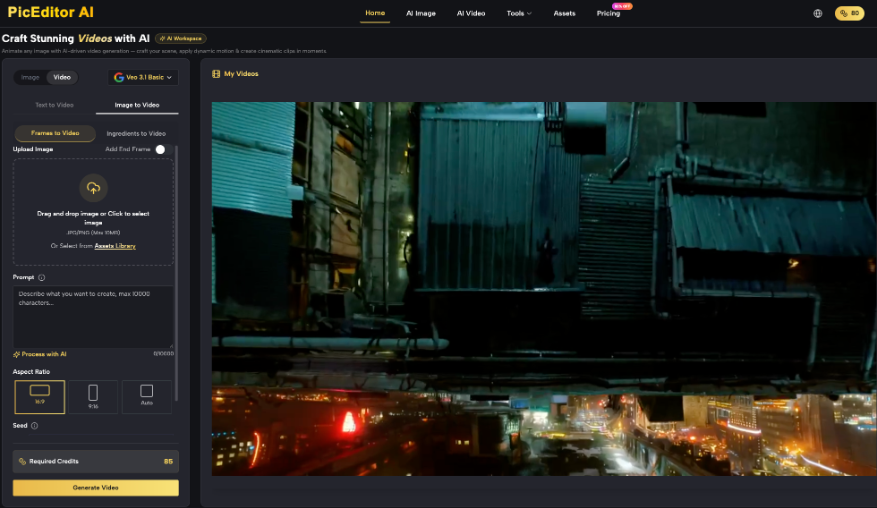
The Photo Editing Tool follows three visible moves: upload a reference image, describe the edit, and choose the output settings before clicking Generate Image. Treat those moves as a controlled inspection procedure, not an invitation to rewrite the whole room.
Upload the Highest-Quality Original Available
Use the clearest JPG or PNG available rather than a screenshot pulled from a messaging app. The interface accepts a reference upload or an item from the Assets Library. Keep the untouched file outside the editing workspace with its original name and date. The generated version should receive a new filename that identifies it as an edited copy.
Write the Change and the Invariants
A useful prompt has two halves: the requested change and the facts that cannot move. For example: “Reduce the yellow color cast in the ceiling lights. Keep the wall color, pipe labels, floor marks, equipment positions, and room proportions unchanged.” This is more reliable than “make this facility photo professional,” because the reviewer can compare each invariant against the original.
Lock Output Size Before Starting Generation
PicEditor AI exposes Image Size, resolution choices from 1K to 4K, the number of images, and Public Visibility. Choose the publication slot first. A square image may suit a maintenance card, while a wide image may suit a property overview. The photo editor AI should adapt the presentation, but the crop must not conceal information needed to understand access, scale, or condition.
Use Visible Pass and Fail Signals
Pass an edit only when fixed objects keep their count and position, warning text is not rewritten, boundaries remain plausible, and the requested correction is obvious without being theatrical. Fail it when door widths change, pipes merge, stains vanish without instruction, or the room gains invented fixtures.

Check Space Facts Before Surface Polish
A short review table keeps taste from taking over. The reviewer should compare the original and generated image side by side at the same zoom. PicEditor AI can speed up the first cleanup, but a person who understands the site must approve the result.
| Check | Pass signal | Fail signal |
|---|---|---|
| Geometry | Doors, walls, and clearances keep their relationships | The room looks wider or access points move |
| Equipment | Counts, labels, and connections remain readable | Valves, cables, or signs appear or disappear |
| Condition | Lighting improves without hiding defects | Cracks, stains, or corrosion are silently erased |
| Crop | The subject fits the slot with context intact | Safety or access context falls outside the frame |
| Disclosure | The file is clearly marked as an edited copy | The revision can be mistaken for the source photo |
This scorecard also helps teams decide when not to edit. A marketing image of a finished lobby may tolerate background cleanup. A photo supporting a condition survey, incident record, quotation, or compliance decision should stay with the controlled evidence process.
Run the review with two people when the image will leave the facilities team. The first reviewer checks site facts: equipment count, access, labels, condition, and geometry. The second checks communication: crop, brightness, file name, disclosure, and destination. Neither reviewer should approve from memory. Both need the source and generated copy on screen at the same size.
Keep rejected outputs as part of the trial record rather than deleting them immediately. A short note such as “door widened,” “warning label changed,” or “stain removed” builds a useful prompt library. Over time, those failure notes show which types of photo can be handled safely and which should go straight to a manual editor or remain untouched.
Do one final destination check after export. Open the actual maintenance system, listing template, or slide deck and confirm that its own compression has not blurred small labels or deepened shadows. Approval of the generated file is only provisional until the delivered version preserves the same facts.
Use It for Triage Not Surveying
PicEditor AI fits teams that need clearer listing images, internal cards, presentation photos, and early visual options without opening a complex manual editor. It is less suitable when the image itself is the measurement, evidence, or contractual record.
The strongest workflow is modest: preserve the source, request one visible change, check fixed facts, and label the output. That turns prompt-based editing into a useful facilities triage tool while keeping judgment with the people who know the building.